
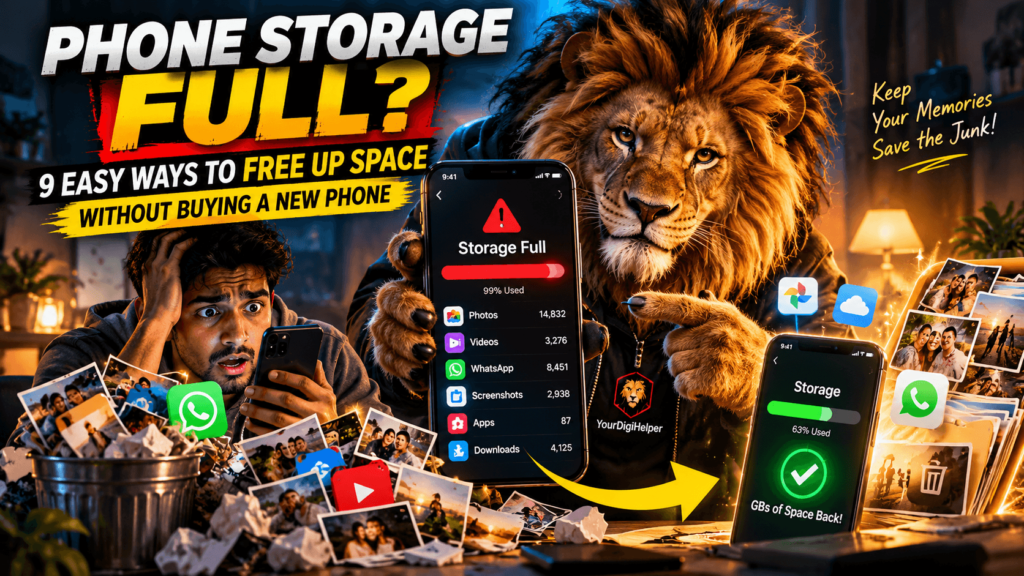
You grab your phone to capture a spontaneous moment, download a critical app, or save an urgent file, only to be stopped cold by a dreaded pop-up: “Storage Almost Full.”
Before you start deleting cherished vacation memories or debating whether to drop hundreds of dollars on an upgrade, take a deep breath. Your phone isn’t useless, and you don’t need a new device. Most of that taken-up space isn’t filled with things you actually care about—it’s consumed by hidden cache files, hidden duplicate photos, forgotten offline downloads, and chat attachments.
Whether you are using an iPhone or an Android device, here are 9 easy, actionable ways to free up gigabytes of storage space in minutes—completely free.
1. Audit Your Hidden Storage Hogs First
Before deleting anything blindly, figure out what is actually hogging your device’s memory. Both iOS and Android feature built-in breakdown tools that show you exactly where your gigabytes are going.
- On iPhone: Go to Settings > General > iPhone Storage.
- On Android: Go to Settings > Storage (or Settings > Battery & Device Care > Storage on Samsung devices).
Pro Tip: Look closely at the “System Data” or “Other” category. If this section takes up more than 15–20 GB, a simple restart can often clear out temp logs and flush stuck system files.
2. Clear App Cache (The Safest Way to Reclaim Gigabytes)
Every time you scroll through Instagram, watch a video on TikTok, or search on Chrome, these apps store temporary files—known as cache—to speed up load times. Over time, this cache quietly grows from a few megabytes to several gigabytes.
- Android: Go to Settings > Apps, tap heavy apps (like Chrome, TikTok, or Spotify), tap Storage, and hit Clear Cache. (Avoid “Clear Data” unless you want to log back in from scratch!)
- iPhone: iOS manages cache automatically, but heavy apps like Safari allow manual cleaning. Go to Settings > Safari > Clear History and Website Data. For apps like TikTok or Snapchat, use the built-in “Clear Cache” button found inside the app’s own settings menu.
3. Clean Up WhatsApp & Messaging App Media
Messaging apps especially WhatsApp are notorious storage thieves. Every auto-downloaded meme, video forward, and voice note gets saved directly to your phone’s internal memory.
WhatsApp Settings ➔ Storage and Data ➔ Manage Storage
- Open WhatsApp and navigate to Settings > Storage and Data > Manage Storage.
- Review the “Larger than 5 MB” section.
- Delete heavy videos, forwarded GIFs, and duplicate clips.
- Prevent future clutter: Go to Settings > Chats and turn off “Save to Photos” (iOS) or “Media Visibility” (Android).
4. Purge “Offloaded” and Unused Apps
We all have apps downloaded for a single workout trend, a flight, or a restaurant menu that haven’t been opened in months.
- iPhone “Offload” Feature: iPhone users can offload unused apps by going to Settings > App Store and enabling Offload Unused Apps. This removes the app to save space while keeping all your documents and personal data intact. If you reinstall the app later, you pick up right where you left off.
- Android “Archive” Feature: Modern Android devices offer an Archive option inside the Google Play Store or Settings that removes the application file while preserving user data.
5. Remove Duplicate Photos & Accidental Screenshots
High-resolution photos and 4K videos eat up storage faster than almost anything else. You don’t need to delete your favorite memories—just eliminate the fluff.
- Delete Duplicates: Both iOS (Photos > Albums > Duplicates) and Android (via Files by Google > Clean) automatically group identical or near-identical photos. Merge or delete them with one tap.
- Clear Screenshots: Search “Screenshots” in your photo gallery. You’ll likely find hundreds of old receipts, boarding passes, and temporary notes that can be safely deleted.
6. Empty the “Recently Deleted” Folder (The Step Most People Forget!)
Deleting photos, videos, or files doesn’t immediately remove them from your phone. Instead, they are moved to a temporary trash folder where they remain for 30 days—still taking up space on your phone!
| Device | How to Empty Trash |
| iPhone | Open Photos > Albums, scroll down to Recently Deleted, authenticate, and select Delete All. |
| Android | Open Files by Google (or Samsung Gallery), open the side menu, tap Trash / Bin, and tap Empty. |
7. Offload High-Res Media to Cloud Storage
If your photo gallery is pushing 50 GB or more, it’s time to utilize cloud storage solutions. Cloud storage safely backs up your photos and videos off your phone so you can delete local copies.
- Google Photos: Install Google Photos (available on iOS and Android), turn on Backup, and once uploaded, use the built-in “Free Up Space” feature. This removes local copies from your device while keeping them accessible in the cloud.
- iCloud Photos: On iPhone, turn on Optimize iPhone Storage under Settings > Photos. This keeps low-resolution thumbnails on your device while storing original full-size files safely in iCloud.
8. Delete Forgotten Offline Streams & Media Downloads
Streaming apps like Netflix, Spotify, YouTube, and Prime Video let you download movies, shows, and music for offline offline viewing or listening. A single downloaded HD movie can easily take up 2 to 4 GB.
- Open your streaming apps (Netflix, Spotify, YouTube, Prime Video).
- Navigate to their respective Downloads or Library tabs.
- Delete episodes you’ve already watched, old playlists, or offline video files.
9. Clear Out the Downloads Folder
Your phone’s Downloads folder is a resting spot for forgotten PDFs, menu scans, email attachments, zip files, and APKs.
- On Android: Open the Files or Files by Google app, select Downloads, sort by file size, and remove items you no longer need.
- On iPhone: Open the Files app, tap On My iPhone, navigate to Downloads, and delete old documents.
Quick Checklist to Keep Your Storage Clean
To prevent your storage from filling up again, follow this simple maintenance schedule:
- Weekly: Empty your “Recently Deleted” photo album and clear out WhatsApp media downloads.
- Monthly: Clear app cache on browser and social media apps.
- Quarterly: Audit unused apps and offload full-resolution videos to cloud backups.
Final Thoughts
A “Storage Full” notification doesn’t mean your phone is at the end of its lifespan. By spending just 10 minutes running through these 9 steps, you can easily recover 10, 20, or even 50+ GB of free space making your phone feel fast, responsive, and fresh again without spending a dime!